Wednesday, October 16, 2019

Storage mode in Power BI Desktop

Storage mode in Power BI Desktop

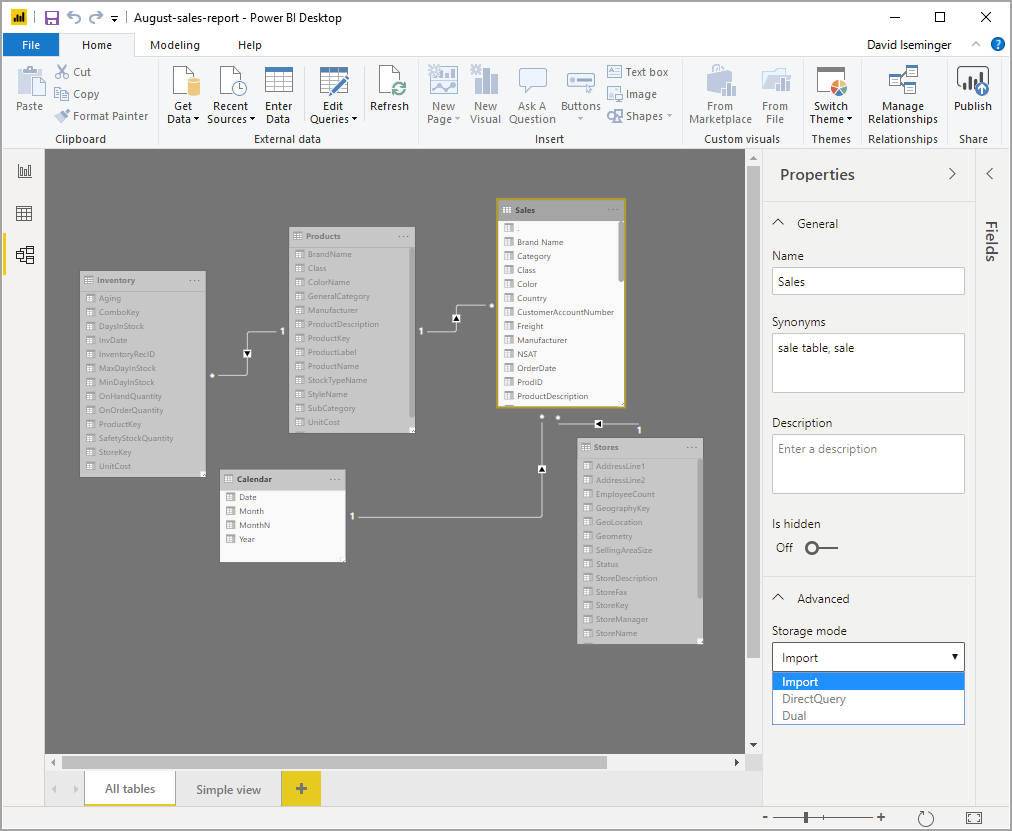
In Microsoft Power BI Desktop, you can specify the storage mode of tables. Storage mode lets you control whether Power BI Desktop caches table data in-memory for reports.
Storage mode in Power BI Desktop
Setting the storage mode provides many advantages. You can set storage mode for each table individually in your model. This action enables a single dataset, which provides the following benefits:
  • Query performance: As users interact with visuals in Power BI reports, Data Analysis Expressions (DAX) queries are submitted to the dataset. Caching data into memory by properly setting the storage mode can boost the query performance and interactivity of your reports.
  • Large datasets: Tables that aren't cached don't consume memory for caching purposes. You can enable interactive analysis over large datasets that are too big or expensive to completely cache into memory. You can choose which tables are worth caching, and which aren't.
  • Data refresh optimization: Tables that aren't cached don't need to be refreshed. You can reduce refresh times by caching only the data that's necessary to meet your service level agreements and your business requirements.
  • Near-real time requirements: Tables with near-real time requirements might benefit from not being cached, to reduce data latency.
  • Writeback: Writeback enables business users to explore what-if scenarios by changing cell values. Custom applications can apply changes to the data source. Tables that aren't cached can display changes immediately, which allows instant analysis of the effects.
The storage mode setting in Power BI Desktop is one of three related features:
  • Composite models: Allows a report to have two or more data connections, including DirectQuery connections or Import, in any combination. 
  • Many-to-many relationships: With composite models, you can establish many-to-many relationships between tables. Many-to-many relationships removes requirements for unique values in tables. It also removes prior workarounds, such as introducing new tables only to establish relationships. 
  • Storage mode: You can now specify which visuals require a query to back-end data sources. Visuals that don't require a query are imported even if they're based on DirectQuery. This feature helps improve performance and reduce back-end load. Previously, even simple visuals, such as slicers, initiated queries that were sent to back-end sources. Storage mode is described further in this article.
 Note
You can see the current storage mode by selecting Model view, selecting the table of interest, and then in the Advanced section of the Properties pane, view the Storage mode value.

Composite models in Power BI Desktop


Composite models in Power BI Desktop


Previously in Power BI Desktop, when we used a DirectQuery in a report, no other data connections - whether DirectQuery or Import - were allowed for that report. With composite models, that restriction is removed. A report can seamlessly include data connections from more than one DirectQuery or Import data connection, in any combination you choose.
Below are the three related features in Composite models:
  • Composite models: Allows a report to have multiple data connections, including DirectQuery connections or Import, in any combination. 
  • Many-to-many relationships: With composite models, you can establish many-to-many relationships between tables. This approach removes requirements for unique values in tables. It also removes previous workarounds, such as introducing new tables only to establish relationships.
  • Storage mode: You can now specify which visuals require a query to back-end data sources. Visuals that don't require a query are imported even if they're based on DirectQuery. This feature helps improve performance and reduce back-end load. Previously, even simple visuals such as slicers initiated queries that were sent to back-end sources.

Set the storage mode

Each table in a composite model has a storage mode that indicates whether the table is based on DirectQuery or Import. The storage mode can be viewed and modified in the Property pane. 
To display the storage mode, right-click a table in the Fields list, and then select Properties. The following image shows the storage mode for the SalesTargets table.
Storage mode setting
The storage mode can also be viewed on the tooltip for each table.
Tooltip displaying the storage mode
For any Power BI Desktop file (a .pbix file) that contains some tables from DirectQuery and some Import tables, the status bar displays a storage mode called Mixed. You can click that term in the status bar and easily switch all tables to Import.


Monday, September 16, 2019

Best practices of Power BI datasets

Best practices of Power BI datasets

Checking the refresh history of your datasets regularly is one of the most important best practices you can adopt to ensure that your reports and dashboards use current data. If you discover issues, address them promptly and follow up with data source owners and gateway administrators if necessary.
In addition, consider the following recommendations to establish and maintain reliable data refresh processes for your datasets:
  • Schedule your refreshes for less busy times, especially if your datasets are on Power BI Premium. If you distribute the refresh cycles for your datasets across a broader time window, you can help to avoid peaks that might otherwise overtax available resources. Delays starting a refresh cycle are an indicator of resource overload. If a Premium capacity is completely exhausted, Power BI might even skip a refresh cycle.
  • Keep refresh limits in mind. If the source data changes frequently or the data volume is substantial, consider using DirectQuery/LiveConnect mode instead of Import mode if the increased load at the source and the impact on query performance are acceptable. Avoid constantly refreshing an Import mode dataset. However, DirectQuery/LiveConnect mode has several limitations, such as a one-million-row limit for returning data and a 225 seconds response time limit for running queries, as documented in Use DirectQuery in Power BI Desktop. These limitations might require you to use Import mode nonetheless. For very large data volumes, consider the use of aggregations in Power BI.
  • Verify that your dataset refresh time does not exceed the maximum refresh duration. Use Power BI Desktop to check the refresh duration. If it takes more than 2 hours, consider moving your dataset to Power BI Premium. Your dataset might not be refreshable on shared capacity. Also consider using incremental refresh in Power BI Premium for datasets that are larger than 1GB or take several hours to refresh.
  • Optimize your datasets to include only those tables and columns that your reports and dashboards use. Optimize your mashup queries and, if possible, avoid dynamic data source definitions and expensive DAX calculations. Specifically avoid DAX functions that test every row in a table because of the high memory consumption and processing overhead.
  • Apply the same privacy settings as in Power BI Desktop to ensure that Power BI can generate efficient source queries. Keep in mind that Power BI Desktop does not publish privacy settings. You must manually reapply the settings in the data source definitions after publishing your dataset.
  • Limit the number of visuals on your dashboards, especially if you use row-level security (RLS). As explained earlier in this article, an excessive number of dashboard tiles can significantly increase the refresh duration.
  • Use a reliable enterprise data gateway deployment to connect your datasets to on-premises data sources. If you notice gateway-related refresh failures, such as gateway unavailable or overloaded, follow up with gateway administrators to either add additional gateways to an existing cluster or deploy a new cluster (scale up versus scale out).
  • Use separate data gateways for Import datasets and DirectQuery/LiveConnect datasets so that the data imports during scheduled refresh don't impact the performance of reports and dashboards on top of DirectQuery/LiveConnect datasets, which query the data sources with each user interaction.
  • Ensure that Power BI can send refresh failure notifications to your mailbox. Spam filters might block the email messages or move them into a separate folder where you might not notice them immediately.

Incremental refresh

Incremental refresh

Incremental refresh provides an integral part of having and maintaining large datasets in Power BI Premium. Incremental refresh has many benefits, for example, Refreshes are faster because only data that has changed needs to be refreshed. Refreshes are more reliable because it's unnecessary to maintain long-running connections to volatile data sources. Resource consumption is reduced because less data to refresh reduces overall consumption of memory and other resources. Incremental refresh policies are defined in Power BI Desktop, and applied when published to a workspace in a Premium capacity.
Refresh details

Wednesday, May 22, 2019

CALCULATE DAX Function

CALCULATE DAX Function (Filter)

Evaluates an expression in a context modified by filters.

Syntax

CALCULATE ( <Expression> [, <Filter> [, <Filter> [, … ] ] ] )
PARAMETERATTRIBUTESDESCRIPTION
Expression
The expression to be evaluated.
FilterOptional
Repeatable
A boolean (True/False) expression or a table expression that defines a filter.

Return values

SCALAR A single value of any type.
The value is the result of the expression evaluated in a modified filter context.

Remarks

Every filter argument can be either a filter removal (such as ALL, ALLEXCEPT, ALLNOBLANKROW), a filter restore (ALLSELECTED), or a table expression returning a list of values for one or more columns or for an entire expanded table.
When a filter argument has the form of a predicate with a single column reference, the expression is embedded into a FILTER expression that filters all the values of the referenced column. For example, the predicate shown in the first expression is internally converted in the second expression.
1
2
3
4
5
6
7
8
9
10
11
12
CALCULATE (
    <expression>,
    table[column] = 10
)
 
CALCULATE (
    <expression>,
    FILTER (
        ALL ( table[column] ),
        table[column] = 10
    )
)

Tuesday, May 21, 2019

Q&A keywords in Power BI

Q&A keywords in Power BI


Aggregatestotal, sum, amount, number, quantity, count, average, most, least, fewest, largest, smallest, highest, biggest, maximum, max, greatest, lowest, littlest, minimum, min
Comparisonsvs, versus, compared to, compared with
DatesPower BI recognizes most date terms (day, week, month, year, quarter, decade, and so on)
Relative datestoday, right now, current time, yesterday, tomorrow, the current, next, the coming, last, previous, ago, before now, sooner than, after, later than, from, at, on, from now, after now, in the future, past, last, previous, within, in, over, N days ago, N days from now, next, once, twice. Example: Count of orders in the past 6 days.
Query commandssorted, sort by, direction, group, group by, by, show, list, display, give me, name, just, only, arrange, rank, compare, to, with, against, alphabetically, ascending, descending, order
Rangegreater, more, larger, above, over, >, less, smaller, fewer, below, under, <, at least, no less than, >=, at most, no more than, <=, in, between, in the range of, from, later, earlier, sooner, after, on, at, later than, after, since, starting with, starting from, ending with
TimesAM, PM, o'clock, noon, midnight, hour, minute, second, hh:mm:ss. Examples: 10 PM, 10:35 PM, 10:35:15 pm, 10 o'clock, noon, midnight, hour, minute, second.


Words and terminology that Q&A recognizes

This list of keywords on this page isn't exhaustive. The best way to see if Power BI recognizes a keyword, is to try it out by typing it in the question box. If the word or term is greyed out, then Power BI doesn't recognize it.
The list below uses present tense, but all tenses are recognized in most cases. For example, “is” includes: are, was, were, will be, have, has, had, will have, has got, do, does, did. And “sort” includes: sorted and sorting. Also, Power BI recognizes and includes singular and plural versions of a word.
CategoryKeywordsColumn3
Aggregatestotal, sum, amount, number, quantity, count, average, most, least, fewest, largest, smallest, highest, biggest, maximum, max, greatest, lowest, littlest, minimum, min
Articlesa, an, the
Blank and Booleanblank, empty, null, prefixed with “non” or “non-“, empty string, empty text, true, t, false, f
Comparisonsvs, versus, compared to, compared with
Conjunctionsand, or, each of, with, versus, &, and, but, nor, along with, in addition to
ContractionsQ&A recognizes almost all contractions, try it out. Here are a few examples: didn’t, haven’t, he’d, he’s, isn’t, it’s, she’ll, they’d, weren’t, where’ll, who’s, won’t, wouldn’t
DatesPower BI recognizes most date terms (day, week, month, year, quarter, decade, ...) and dates written in many different formats (see below). Power BI also recognizes the following keywords: MonthName, Days 1-31, decade. Examples: January 3rd of 1995, January 3rd 1995, jan 03 1995, 3 Jan 1995, the 3rd of January, January 1995, 1995 January, 1995-01, 01/1995, names of months
Relative datestoday, right now, current time, yesterday, tomorrow, the current, next, the coming, last, previous, ago, before now, sooner than, after, later than, from, at, on, from now, after now, in the future, past, last, previous, within, in, over, N days ago, N days from now, next, once, twice.
Example: count of orders in the past 6 days.
Equality (Range)in, equal to, =, after, is more than, in, between, before
Examples: Order year is before 2012? Price equals between 10 and 20? Is the age of John greater than 40? Total sales in 200-300?
Equality (Value)is, equal, equal to, in, of, for, within, is in, is on
Examples: Which products are green? Order date equals 2012. Is the age of John 40? Total sales that aren't equal to 200? Order date of 1/1/2016. 10 in price? Green for color? 10 in price?
NamesIf a column in the dataset contains the phrase "name" (for example, EmployeeName), Q&A understands the values in that column are names. You can ask questions like "which employees are named robert."
Pronounshe, him, himself, his, she, herself, her, hers, it, itself, its, they, their, them, themselves, theirs, this, these, that, those
Query commandssorted, sort by, direction, group, group by, by, show, list, display, give me, name, just, only, arrange, rank, compare, to, with, against, alphabetically, ascending, descending, order
Rangegreater, more, larger, above, over, >, less, smaller, fewer, below, under, <, at least, no less than, >=, at most, no more than, <=, in, between, in the range of, from, later, earlier, sooner, after, on, at, later than, after, since, starting with, starting from, ending with
Timesam, pm, o'clock, noon, midnight, hour, minute, second, hh:mm:ss
Examples: 10 pm, 10:35 pm, 10:35:15 pm, 10 oclock, noon, midnight, hour, minute, second.
Top N(order, ranking): top, bottom, highest, lowest, first, last, next, earliest, newest, oldest, latest, most recent, next
Visual typesall visual types native to Power BI. If it's an option in the Visualizations pane, then you can include it in your question. The exception to this is custom visuals that you've manually added to the Visualization pane.
Example: show districts by month and sales total as bar chart
Wh (relationship, qualified)when, where, which, who, whom, how many, how much, how many times, how often, how frequently, amount, number, quantity, how long, what

Q&A helps you phrase the question

Q&A does its best to understand and answer the question being asked. It does this in several ways. For all of these, you can accept the action in full, in part, or not at all. As you type your question, Q&A:
  • autocompletes words and questions. It uses various strategies, including autocompleting recognized words, and previously used questions that returned valid responses. If more than one autocomplete option is available, they're presented in a dropdown list.
  • corrects spelling.
  • provides a preview of the answer in the form of a visualization. The visualization updates as you type and edit the question (it doesn't wait for you to press Enter).
  • suggests replacement terms from the underlying dataset(s) when you move the cursor back in the question box.
  • restates the question based on the data in the underlying dataset(s). Q&A replaces the words you used with synonyms from the underlying dataset(s). By reading the restatement, you know whether Q&A understood your question or not.
  • dims words it doesn't understand.